HTML Tags vs Elements: What You Type vs What the Browser Builds
Opening tags, closing tags, void elements, and block vs inline, explained for beginners
Most beginner tutorials use "tag" and "element" as if they were the same word. They aren't. A tag is the thing you type: <p>. An element is the whole thing the browser builds from it: the opening tag, the content, the closing tag, and everything inside. Once you see the difference, a lot of HTML stops feeling arbitrary.
This post covers HTML tags and elements from the ground up: what they are, how they're shaped, which ones have no closing tag, and why some sit side by side while others take a whole line.
HTML is the skeleton of a webpage
HTML (HyperText Markup Language) describes the structure of a page: this is a heading, this is a paragraph, this is a link, this is an image. It doesn't decide colours or fonts (that's CSS) and it doesn't react to clicks (that's JavaScript).
Think of a webpage as a body. HTML is the skeleton, CSS is the skin and clothes, JavaScript is the muscle. You can have a skeleton with no clothes, an unstyled page that still works. You can't hang clothes on nothing.
Why use it at all, instead of a plain text file? Because the browser needs to know what each piece of text is. "Welcome" could be a heading, a button label or a link. HTML is how you tell it.
A tag is a label you put around content
Picture a box with a label on it. The label says what's inside: "books", "kitchen", "fragile". An HTML tag is that label.
<p>Browsers read HTML from top to bottom.</p>
The <p> tag says: "what follows is a paragraph". The browser reads the label and treats the text accordingly: on its own line, with space above and below.
Tags are written inside angle brackets, and the name between them (p, h1, div) decides what kind of box it is.
Opening tag, content, closing tag
Most HTML has three parts:
<h1>Hello, world</h1>
<h1>is the opening tag. It starts the box.Hello, worldis the content: what's inside the box.</h1>is the closing tag. Same name, with a/in front. It ends the box.
Forget the closing tag and the browser has to guess where the box ends. It usually guesses, and it doesn't always guess what you meant.
An element is the whole thing
Here's the distinction the rest of HTML depends on. The element is the opening tag, the content and the closing tag, taken together as one unit.
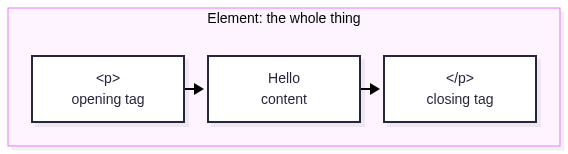
So when someone says "add a paragraph element", they mean all of it. When they say "the closing tag is missing", they mean only </p>.
The opening tag can also carry attributes, extra information written as name="value":
<a href="https://developer.mozilla.org">MDN Web Docs</a>
Here href tells the link where to go. Attributes always go in the opening tag, never the closing one.
Elements can also sit inside other elements, like boxes inside boxes:
<p>HTML is <strong>not</strong> a programming language.</p>
The strong element lives inside the p element. The rule: close the inner box before the outer one. <p><strong>…</p></strong> is broken nesting, and the browser will rearrange it to make sense of it.
The distinction is more than vocabulary. When the browser reads your HTML, the tags are just text it uses to build a tree of elements: the DOM. Tags exist in your file; elements exist in the browser. I walked through that process in how a browser turns HTML into the DOM.
Some elements have no content: void elements
A few elements can't contain anything, so they have no closing tag at all. These are void elements (often called self-closing):
<p>Line one<br>Line two</p>
<hr>
<img src="cat.png" alt="A cat asleep on a keyboard">
<input type="text" placeholder="Your name">
The common ones are <br> (line break), <hr> (horizontal rule), <img> (image), <input> (form field), and in the <head>, <meta> and <link>. An image doesn't wrap text; everything it needs goes in its attributes.
You'll also see them written with a slash: <br />. Both forms are valid HTML. The slash is allowed, but it does nothing. What makes <br> void is its name, not the slash.
That has one surprising consequence. You can't make an ordinary element self-closing by adding a slash:
<!-- ❌ Looks closed. It isn't. -->
<div />
Hello
<p>World</p>
Chrome 157 builds this from it:
<div>Hello<p>World</p></div>
The browser ignored the /, treated <div /> as an opening tag, and wrapped everything after it. That follows the HTML spec, so other browsers do the same. If you've written JSX in React, where <div /> really is closed, this one catches you out.
<!-- ✅ Normal elements always need a closing tag -->
<div></div>
Block vs inline: how elements sit on the page
Paste this into a file and open it in a browser:
<div>I am a div.</div>
<div>I am another div.</div>
<span>I am a span.</span>
<span>I am another span.</span>
The two divs stack, each on its own line. The two spans sit side by side on one line. That's the difference between block and inline elements.
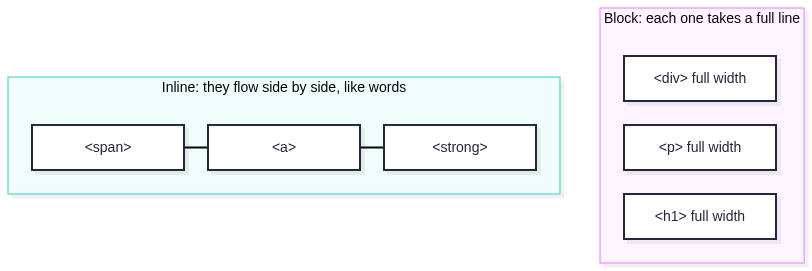
- Block elements start on a new line and stretch the full width available:
div,p,h1toh6,ul,li. - Inline elements sit inside a line of text and take only as much width as their content:
span,a,strong,em,img.
A sensible rule while you're learning: put inline elements inside block elements, not the other way round. A link inside a paragraph is normal. A paragraph inside a link reads oddly to anyone maintaining your code later.
Where this simple model breaks: "block" and "inline" aren't fixed properties of the tags. They're the browser's default CSS display value for each element, and CSS can change it. One line of span { display: block; } makes every span stack like a div. So when you pick a tag, pick it for what the content is (a heading, a paragraph, a link), not for how it lays out. Layout is CSS's job.
The tags you'll use every day
You don't need all of HTML's tags to build a real page. These cover most of what a beginner writes:
| Tag | What it's for | Default layout |
|---|---|---|
<h1> to <h6> |
Headings, from most to least important | Block |
<p> |
A paragraph of text | Block |
<div> |
A generic container with no meaning of its own | Block |
<ul>, <ol>, <li> |
Unordered list, ordered list, list item | Block |
<span> |
A generic inline container | Inline |
<a> |
A link (href says where to) |
Inline |
<strong>, <em> |
Strong importance, emphasis | Inline |
<img> |
An image (void; needs src and alt) |
Inline |
<br> |
A line break (void) | Inline |
<button> |
A clickable button | Inline-block |
div and span are the "no meaning" boxes: use them when nothing more specific fits. When something more specific exists (p for a paragraph, a for a link, button for a button), use that one. Browsers, screen readers and search engines all read the tag name.
See it yourself: inspect any page
Open any website, right-click on a heading or a paragraph and choose Inspect. DevTools opens with that element highlighted.
What you're looking at is the Elements panel, and the name is a clue. It shows elements, the tree the browser built, not the raw tags from the file. Hover over a line and the matching box lights up on the page. You can see which elements are block (highlight spans the full width) and which are inline (highlight hugs the text).
Try it on your own HTML too. Write the broken <div /> example above and inspect it: you'll see the div wrapping "Hello" and the paragraph, exactly as described.
The takeaway fits in one line: tags are what you type; elements are what the browser builds from them. The limit of this post is that it stays at the beginner level. Real pages use dozens more tags (header, nav, main, section, form), and they follow the same rules you've seen here.
Open DevTools on a site you use every day: how many divs do you find before you hit a more specific tag?
Comments
Join the discussionNo comments yet. Be the first to comment.