Root, TLD, Authoritative: Tracing a DNS Lookup Step by Step
Follow google.com from the root name servers to its own servers, with dig commands and real lookups, and see what your resolver does for you
Ask for google.com and you get an IP address back in a blink. Here's that answer from Cloudflare's public resolver, 1.1.1.1, on 23 November 2026:
Name       Type TTL IPAddress
----       ---- --- ---------
google.com    A 167 142.250.143.113
google.com    A 167 142.250.143.101
That answer looks like one step. It isn't. Somewhere, a server had to ask three different layers of the internet's directory before it could give it to you. This post walks those layers by hand, the same way a resolver does: root → TLD → authoritative.
The assignment for this post is built around dig, the standard DNS tool on macOS and Linux, so each section gives you the dig command to run yourself. The output shown comes from PowerShell's built-in Resolve-DnsName on Windows 11, because dig isn't part of Windows. Same questions, same servers, same answers, different formatting.
DNS, and why name resolution exists
People remember names; computers connect to numbers. DNS (the Domain Name System) is the directory that turns one into the other. I covered what each kind of record means in one domain, six records. This post is about how a name actually gets looked up.
The catch is scale. There are far too many names for one server to hold, and they change constantly. So DNS is split into layers, and each layer only knows who to ask next:
- the root servers know who runs each top-level domain (
.com,.org,.in…); - the TLD servers know who runs each domain under them;
- the authoritative servers for a domain hold its actual records.

What dig is, and when you'd use it
dig sends one DNS question and prints the whole reply: the question, the answer, which servers are responsible, and how long the lookup took. Your browser does DNS silently. dig shows the working.
You'd reach for it when a site won't resolve, when a DNS change "isn't showing up yet", or when you need to know which servers are actually in charge of a domain. In dig's output, the parts that matter here are:
- ANSWER: the records you asked for;
- AUTHORITY: name servers responsible for the name, which is how a server says "ask them instead";
- ADDITIONAL: extra helpful records, usually those servers' IP addresses.
Resolve-DnsName labels the same parts in a Section column. You'll see Answer, Authority and Additional below.
Stage 1: dig . NS, the root name servers
Every DNS name ends in an invisible dot. google.com is really google.com., and that final dot is the root. Asking for its NS records asks "who runs the root?"
dig . NS
Name Type    TTL NameHost
---- ----    --- --------
.      NS 515314 a.root-servers.net
.      NS 515314 b.root-servers.net
...
.      NS 515314 m.root-servers.net
Thirteen names, a through m. Thirteen names doesn't mean thirteen machines: each name is served from many locations around the world using anycast, where the same IP address is announced from many places and you reach the nearest one.
The root servers don't know where google.com is. They know who runs .com.
Stage 2: dig com NS, the TLD name servers
dig com NS
Name Type    TTL NameHost
---- ----    --- --------
com    NS 166556 a.gtld-servers.net
com    NS 166556 b.gtld-servers.net
...
com    NS 166556 m.gtld-servers.net
These are the .com TLD (top-level domain) servers, again thirteen names. They know, for every .com domain, which servers are responsible for it. They don't know google.com's IP address either.
Stage 3: dig google.com NS, the authoritative name servers
dig google.com NS
Name       Type    TTL NameHost
----       ----    --- --------
google.com   NS 344987 ns3.google.com
google.com   NS 344987 ns4.google.com
google.com   NS 344987 ns1.google.com
google.com   NS 344987 ns2.google.com
These four are google.com's authoritative servers: the source of truth for its records. Google runs them itself. If you want to know what google.com's records really are, not a cached copy, these are the servers to ask.
This is what NS records are for. They're the signposts that link the layers together. The root holds NS records pointing to .com. .com holds NS records pointing to ns1–ns4.google.com. Change google.com's NS records at .com, and the whole internet starts asking different servers.
Stage 4: dig google.com, and the walk done by hand
dig google.com asks your resolver for the A record and gets the final answer you saw at the top. To see the walk the resolver did, ask each layer yourself, with recursion turned off so each server only says what it knows. (In dig, that's +norecurse; in PowerShell, -NoRecursion.)
Ask a root server:
dig @a.root-servers.net google.com +norecurse
Name Type   Section NameHost
---- ----   ------- --------
com    NS Authority l.gtld-servers.net
com    NS Authority j.gtld-servers.net
...
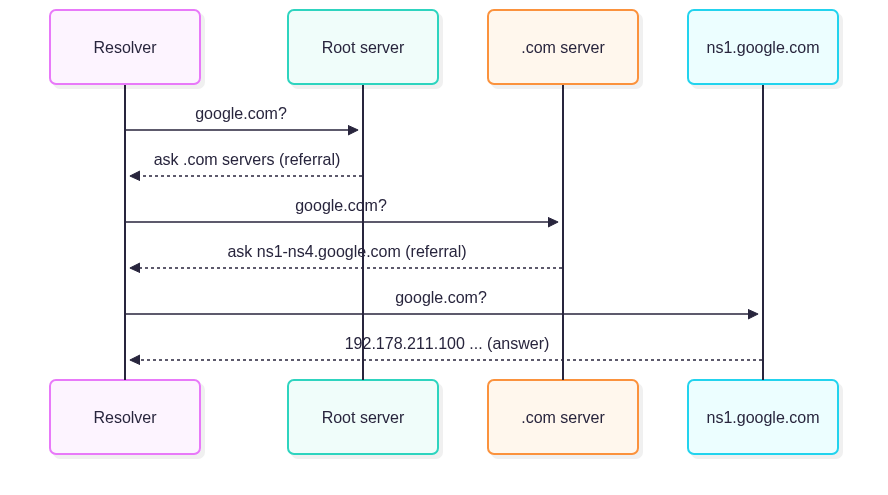
No answer, only a referral: "I don't know google.com, but here are the .com servers." The root's reply had 13 records in Authority and 26 in Additional, the IPv4 and IPv6 addresses of those 13 servers.
Ask a .com server:
dig @a.gtld-servers.net google.com +norecurse
Name           Type    Section NameHost       IPAddress
----           ----    ------- --------       ---------
google.com       NS  Authority ns1.google.com
google.com       NS  Authority ns2.google.com
...
ns1.google.com    A Additional                216.239.32.10
Another referral, one level down: "Ask Google's servers. Here are their addresses."
Ask Google's own server:
dig @ns1.google.com google.com +norecurse
Name       Type TTL Section IPAddress
----       ---- --- ------- ---------
google.com    A 300  Answer 192.178.211.100
google.com    A 300  Answer 192.178.211.139
...
Finally an Answer. Three servers, two referrals, one answer. That's DNS resolution.
One honest note from running this: on my network, the .com step over UDP returned "DNS server failure", while the same query over TCP worked. So I ran all three steps with -TcpOnly. DNS normally uses UDP, but it's allowed to use TCP as well, and that's sometimes the only thing a network lets through.
What the recursive resolver does for you
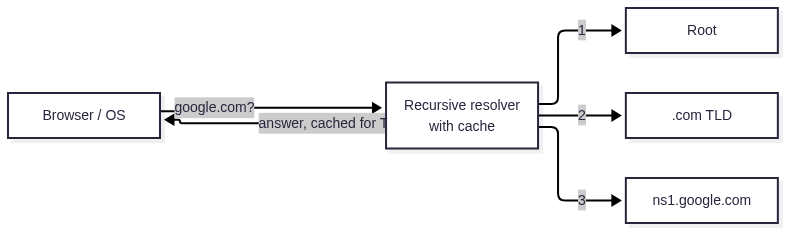
Your laptop doesn't do that walk. It asks a recursive resolver, usually your ISP's, your company's, or a public one like 1.1.1.1, and the resolver walks root → TLD → authoritative on your behalf.
Then it caches every step. The .com server list is kept for days (that TTL of 166,556 seconds is about 46 hours), google.com's name servers for days, and google.com's address for minutes. The next person who asks for any .com name skips the root entirely. Most lookups are answered straight from the cache.
You can see the cache in the TTLs. Google's own server returned a TTL of 300: a fresh record, valid for five minutes. Through 1.1.1.1, the same record showed 167: a cached copy, already partway through its five minutes.
And here's how each command maps to a stage:

From dig to the browser
When you type google.com and press Enter, the browser checks its own cache, then the operating system's, then asks the resolver. The resolver answers from its cache or does the walk. With an IP address in hand, the browser opens a TCP connection to it; I covered that next step in why the TCP handshake takes three steps. DNS is the step before any of it can start.
Where the simple model leaks
Different askers get different answers. Through 1.1.1.1, google.com came back as 142.250.143.x and later 142.251.106.x. From Google's own server, asked from my machine, it was 192.178.211.x. Through my system's default resolver, 142.251.222.78. All correct. Large sites hand out addresses based on who seems to be asking, to send people to a nearby server, so "the" IP address of google.com doesn't really exist. That's also why I wouldn't use any of these addresses in your own config.
Caching makes changes slow. If google.com changed its records, resolvers would keep serving the old ones until their TTLs ran out. That's the "DNS propagation" delay people complain about. Nothing propagates; caches expire.
Not every lookup is visible on the network. Browsers can use DNS over HTTPS, sending lookups inside encrypted HTTPS to a resolver instead of as plain DNS. The walk is the same; you just can't watch it from outside.
The takeaway: DNS resolution is a chain of referrals. Root points to TLD, TLD points to the authoritative servers, and they give the answer, while a resolver does the walking and caching for you. This post skipped DNSSEC, which signs those answers so they can't be forged; it rides on exactly the same layers.
Run dig google.com (or Resolve-DnsName google.com) twice, a minute apart. Does the TTL go down, and does the IP address change?
Comments
Join the discussionNo comments yet. Be the first to comment.